AI Background Generator for Product Images (Guide)
This toolkit allows you to automatically standardize product images to a uniform size and generate professional backgrounds using Adobe Photoshop's AI (Firefly).
Designed for high-volume workflows, this solution is capable of processing thousands of assets in a single batch, saving countless hours of manual work. Whether you have 50 or 5,000 images, this workflow handles the heavy lifting.
The process consists of two stages:
- Preparation (Script): Resizing and centering the product (Customizable dimensions).
- Generation (Action): Creating the background using AI.
Step 1: Prepare Images (JSX Script)
The script takes your raw product photos, creates a 370x500 px canvas, places the product in the center, and saves the result as a PNG with a transparent background.If you need a different size (e.g., 1000x1000 for Instagram or 2000x3000 for a catalog), simply edit the numbers in lines 5 and 6 of the code (targetWidth and targetHeight).
How to use:
- Download the script file
ResizeAndCenter.jsx (Click "Download Project File above"). - Open Photoshop.
- Go to File -> Scripts -> Browse...
- Select the downloaded script file.
- In the dialog box, select the images you want to process.
- Offset Settings: The script will ask: "How many pixels to shift the image?".
- Enter
0 to keep the item strictly in the center. - Enter a positive number (e.g.,
20) to move the item down. - Enter a negative number (e.g.,
-20) to move the item up.
- Wait for the process to finish. The script will automatically create an
exported folder in the same location as your original files.
Step 2: Install the Action
The .atn file contains the recorded workflow for the AI generation. You only need to install this once.
- Download the action file
AI_BG_Generate.atn. - Open the Actions panel in Photoshop: Window -> Actions.
- Click the menu icon (three lines ≡) in the top right of the panel and select Load Actions...
- Select the downloaded
.atn file. You will see a new set appear in your list (e.g., Add Background).
Step 3: Run Batch Generation
Now, apply the AI generation to all prepared images at once.
- Go to File -> Automate -> Batch...
- Configure the settings as follows:
- Play:
- Set: Select the Action Set you loaded in Step 2.
- Action: Select the specific action (e.g., "Generative Fill" or "Generate Background").
- Source: Select Folder.
- Choose...: Select the
exported folder created in Step 1.
- Click OK.
Photoshop will open each file, generate the background based on the "Soft Background" prompt1, and save the result.
Step 4: Quality Control & Cleanup
Since AI generation varies, checking the results is essential.
- Open the folder with the final images.
- Rename: Delete the word "copy" from filenames if Photoshop added it during the batch save.
- Review: Check for visual artifacts or weird hallucinations. Delete any bad results.
- Fixing Issues:
- Move the failed images to a separate folder.
- Run the Batch process again on just these files. AI generates unique results every time, so the second attempt is often successful.
- Manual Fix: If an image fails repeatedly (usually ~5% of cases), open it manually and adjust the Generative Fill prompt or generate new variations.
Real-World Applications: Who Needs This Tool?
While this script is powerful for any designer, it is a game-changer for industries that rely on high-volume visual content. Here is how different sectors can leverage this automated workflow.
1. Digital Advertising & Performance Marketing
In the world of paid traffic (Facebook Ads, Google Display, Native networks), ad fatigue is the enemy. To keep Click-Through Rates (CTR) high, marketers need to test dozens of visual variations daily.
- Rapid A/B Testing: Instead of manually designing one background, generate 50 variations of the same product in minutes to see which color palette or setting performs best.
- Format Adaptation: Quickly resize your "Hero Product" into square formats for carousels or vertical formats for Stories, ensuring your brand looks professional across every placement.
- Scale Creative Production: Produce high-end marketing assets for massive inventory lists without increasing your design budget.
2. Digital Entertainment & Game Library Management
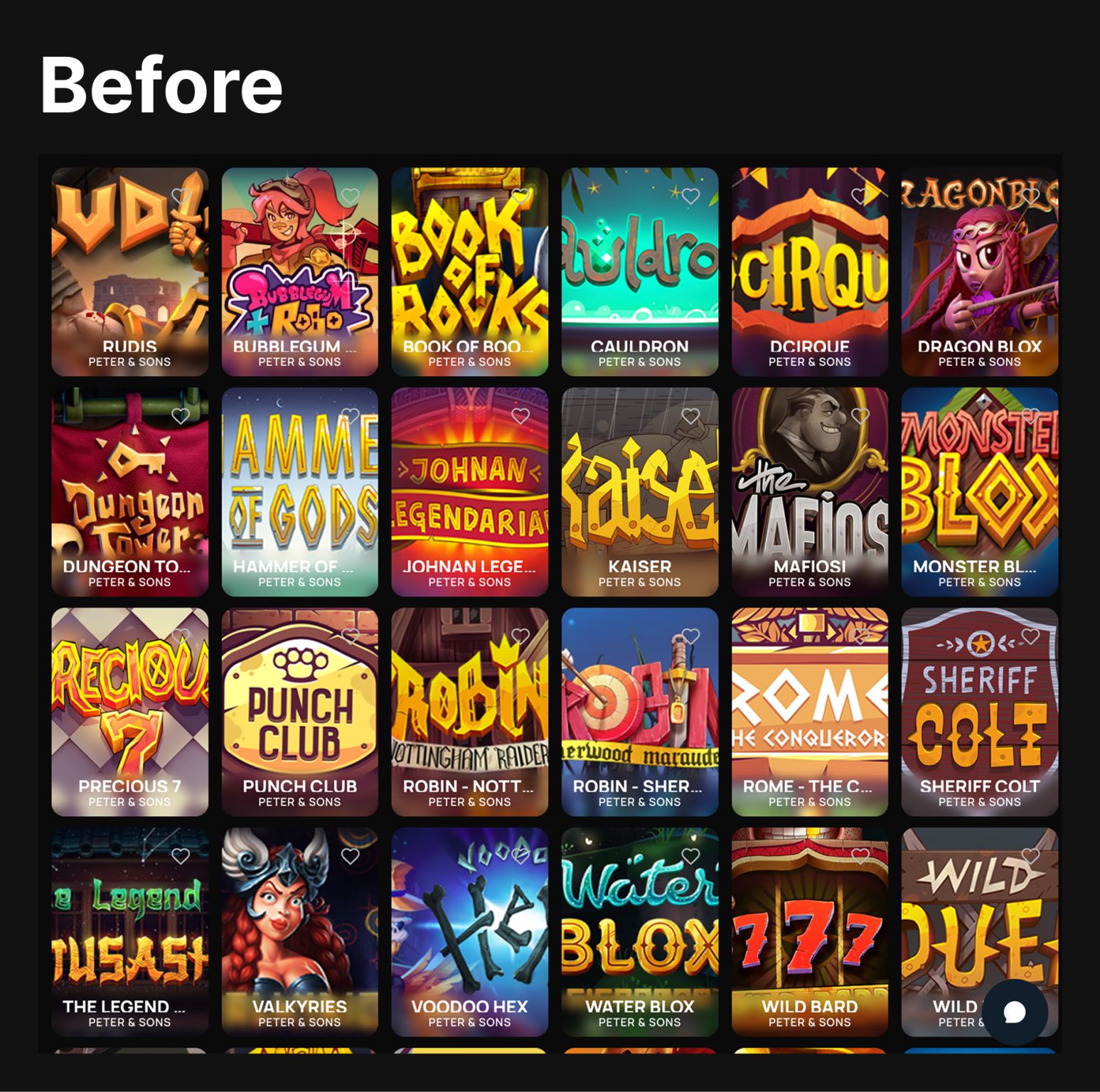
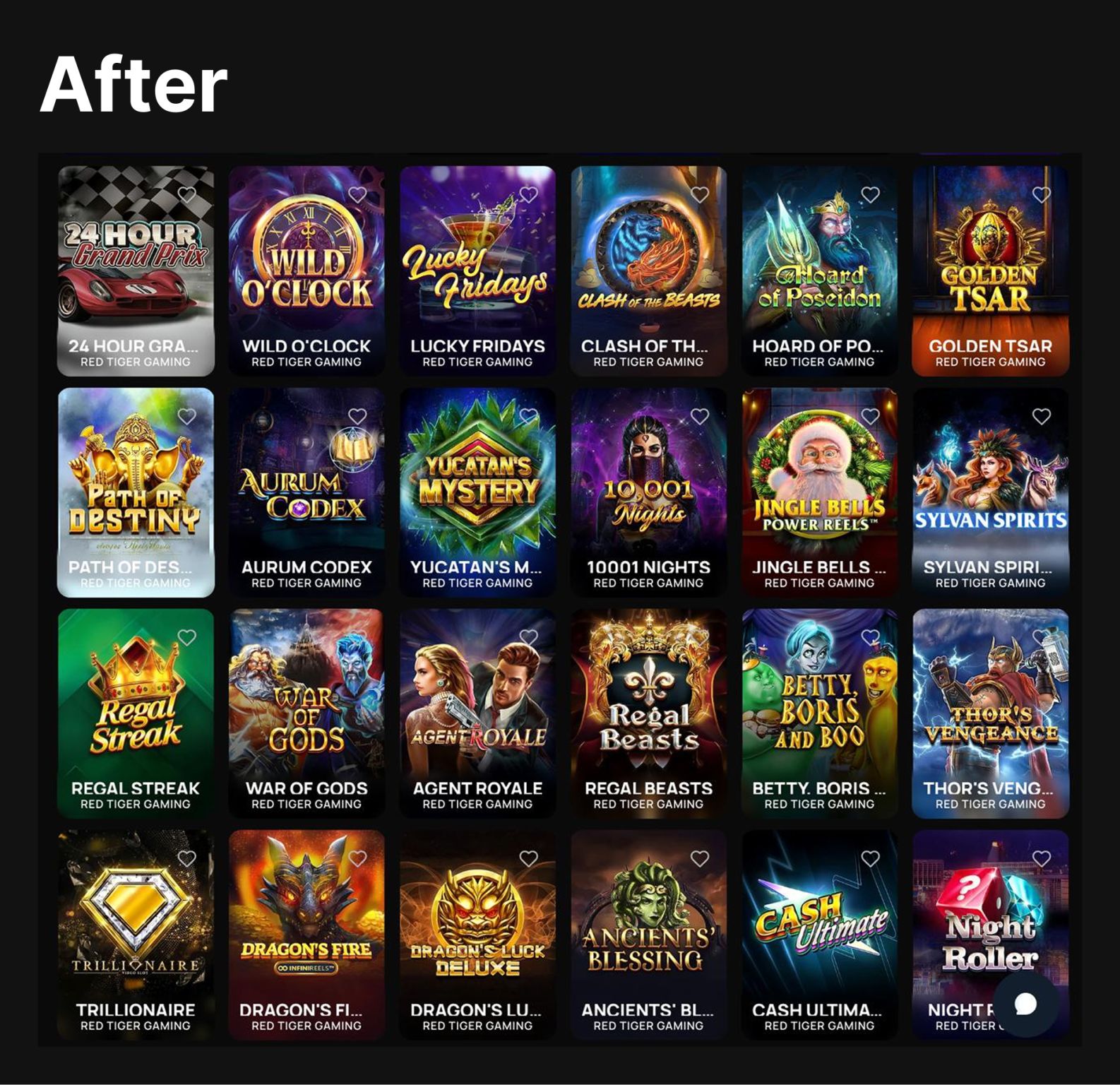
For platforms managing thousands of titles—such as mobile app stores, streaming services, or online game lobbies—visual consistency is critical for user experience. A messy grid of mismatched thumbnails can lower engagement.
- Unified UI/UX: Standardize thousands of game logos or character assets into a cohesive library. Ensure every thumbnail has the same padding, alignment, and thematic background style.
- Thematic Lobbies: Instantly generate backgrounds that match specific genres (e.g., "Neon City" for sci-fi titles or "Green Felt" for classic table games) to create an immersive browsing experience.
- Fast Onboarding: When adding new providers or game packs, process the incoming assets immediately to match your platform's existing visual standards.
3. Social Media Content Creation
Building a brand on Instagram, TikTok, or Pinterest requires a "lifestyle" aesthetic that white-background product photography simply cannot provide.
- Elevated Aesthetics: Transform sterile e-commerce photos into engaging lifestyle content. Place your product on a "sunlit wooden table" or a "marble counter" to blend naturally with user-generated content in the feed.
- Consistent Branding: Maintain a strict visual identity across thousands of posts by using the same Generative Fill prompts (e.g., specific lighting or color tones) for every batch.
- Thumbnail Optimization: Create eye-catching covers for Reels and video content that encourage clicks and profile visits.
4. Seasonal Marketing & E-commerce Events
Updating a catalog for major sales events (Black Friday, Christmas, Valentine's Day) traditionally requires expensive photoshoots or weeks of manual editing.
- Instant Catalog Refreshes: Re-run your existing product images through the script with seasonal prompts. Turn a standard catalog into a "Winter Wonderland" collection or a "Summer Sale" showcase in a single afternoon.
- Event-Specific Landing Pages: Create dedicated visual themes for flash sales without permanently altering your source files.
- Reduced Time-to-Market: Launch holiday campaigns weeks ahead of competitors by automating the visual production process.